


Search content
Use the search function to discover discussions, resources, events and community updates. You can also use tags to filter content and explore topics that match your interests, areas of expertise or current projects.
Add content
Contribute to the community by adding content in a topic. Topics can be used to start discussions, share resources, highlight projects or gather feedback from other members.
You can also collaborate with other community members when creating content. Learn more in You can now work together on posts!.
Follow content
To stay informed about subjects that matter to you, you can follow topics and tags across the community. This allows you to receive notifications when new content is published or when new comments are added to discussions you are interested in, even if you have not commented on or liked the content yourself.
Get notified when new comments are posted, even if you did not comment on or like the content yourself. See how it works in Tip of the day #2: New community feature! Discover content now.
Create a topic
1. Sign in with your EU Login
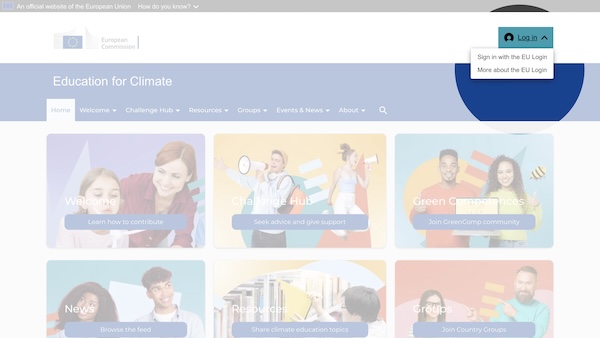
To contribute, we need to verify your profile. Follow the next steps to do so.
2. Click the + button to create a new topic
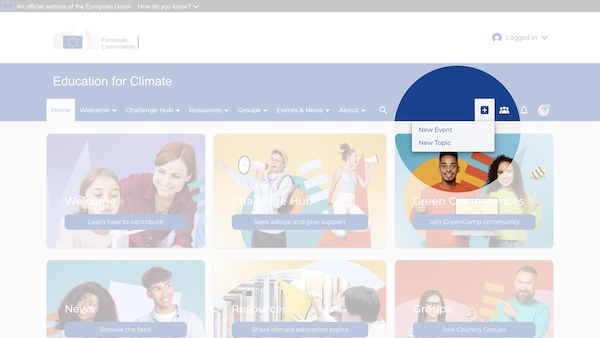
3. Choose the topic type and add a title
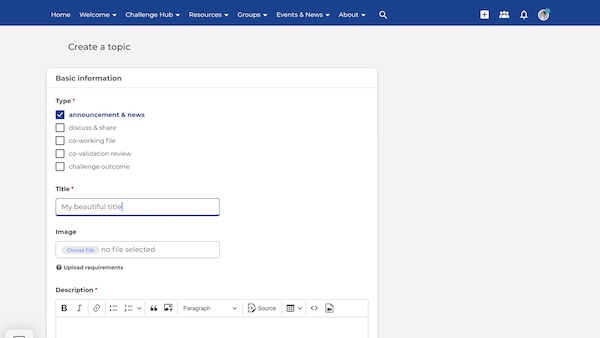
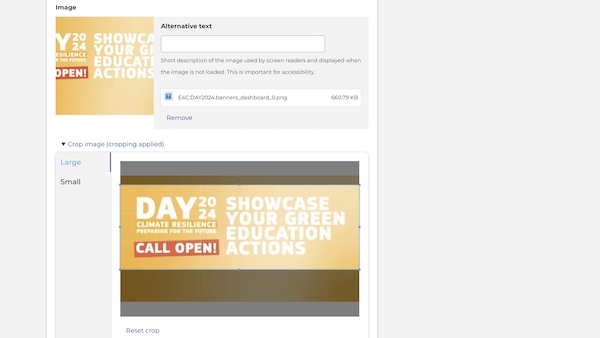
4. Upload your banner image
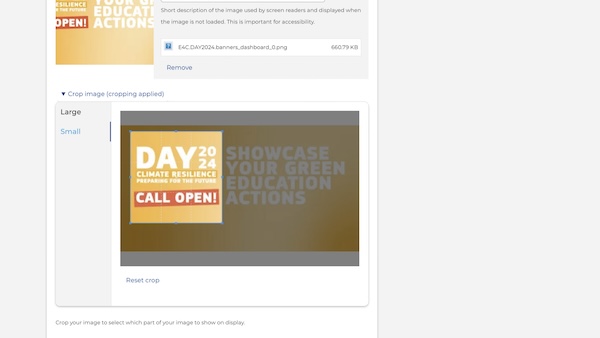
The ideal size for the banner is 1200px by 423px.
However, you can crop your image directly on the platform while uploading it.
To crop your image for the banner and the square vignette, click on ‘Large’ and ‘Small’, respectively, and then adjust it.
5. Add your text
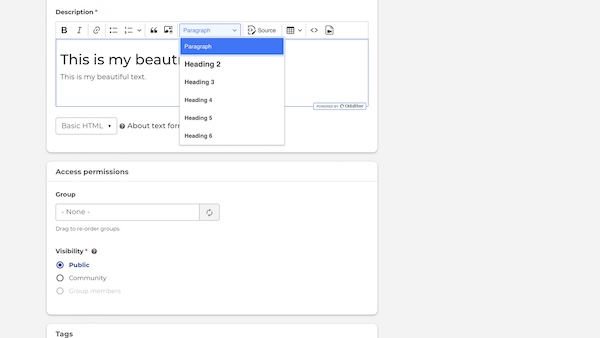
Choose the style by clicking on the Paragraph menu.
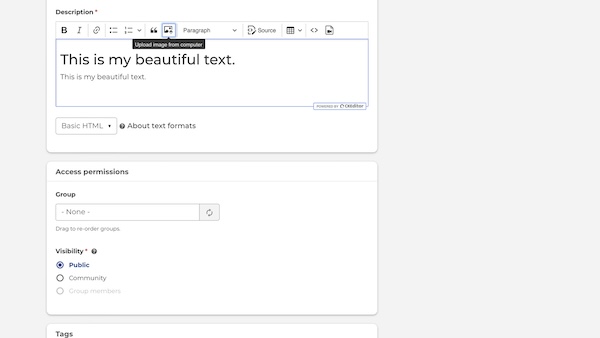
You can upload images in the text. Make sure it is not larger than 600px.
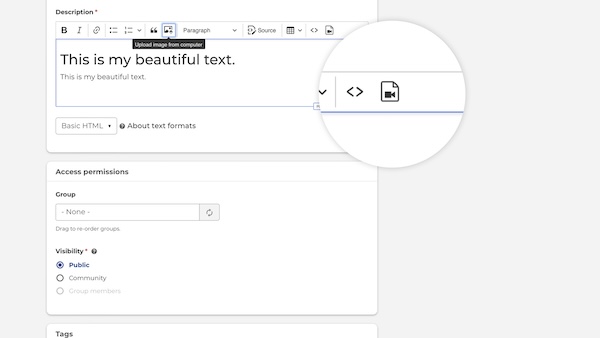
You also can embed a video from YouTube, Vimeo, etc. Just click on the video icon and add the URL of the video.
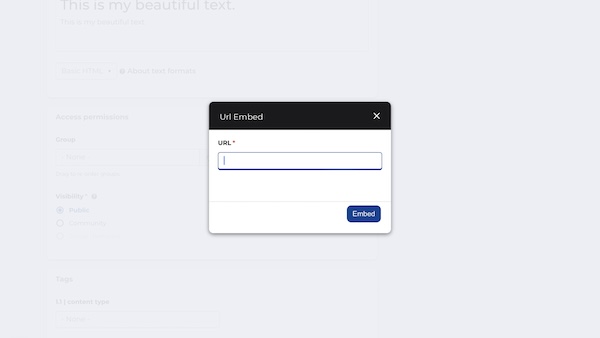
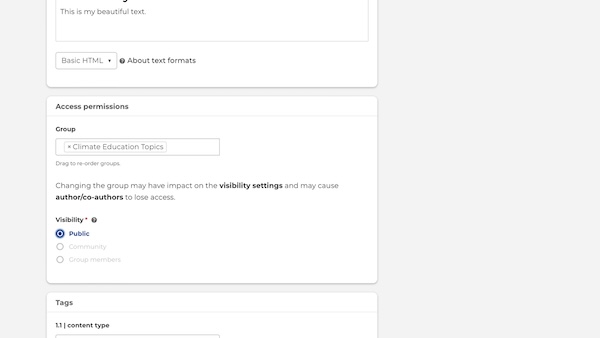
6. Chose the group(s) where you want to post your topic
See also How to post the same topic in different groups.
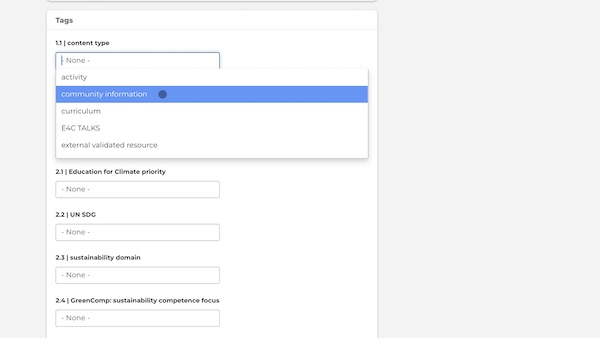
7. Tag your topic
8. Add co-editors if needed
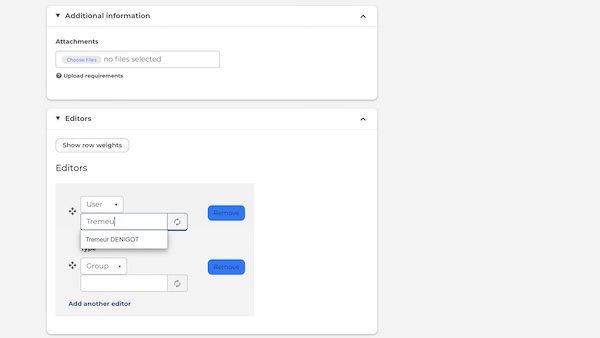
9. Don't forget to save and create your topic

Topic visibility
When creating a topic or an event, you can also choose who can see it. Three visibility options are available:
- Public – visible to all visitors to the platform.
- Community – visible to all logged-in users.
- Group members only – visible only to members of the selected group.
This allows you to decide whether your content is intended for a specific group, the wider community or all visitors to the platform.